How To Check Your Serial Number Laptop
Ever wonder where to find that elusive serial number on your laptop? It's crucial for warranty claims, software registration, driver downloads, and even reporting a lost or stolen device. This guide will walk you through various methods to locate it, step-by-step.
Why Do You Need Your Laptop's Serial Number?
Your laptop's serial number is a unique identifier, like a VIN for your car. You might need it for several reasons:
- Warranty Claims: To prove you own the device and that it's still under warranty.
- Software Registration: Some software requires the serial number of your computer for activation.
- Driver Downloads: Identifying your exact model helps you download the correct drivers from the manufacturer's website.
- Reporting a Lost or Stolen Laptop: Providing the serial number to law enforcement or your insurance company is essential.
- Technical Support: When contacting the manufacturer or a repair shop for assistance, they'll often ask for the serial number.
Method 1: Check the Laptop's Exterior
The most straightforward way to find your serial number is by physically inspecting your laptop. Manufacturers often print it on a sticker or engrave it directly onto the device. Here's where to look:
A. Underneath the Laptop
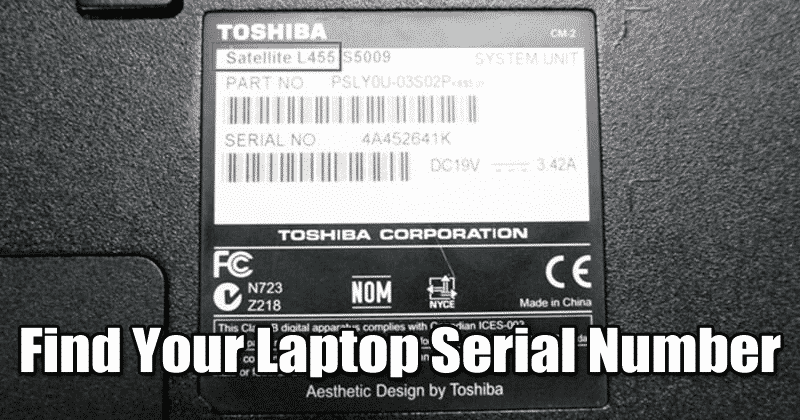
This is the most common location. Turn your laptop over and look for a sticker, usually white or silver. It might be a small, rectangular sticker or a larger one containing various information. Look for labels like:
- Serial No.
- S/N
- SNID (Acer Laptops)
- Service Tag (Dell Laptops)
The serial number is usually a string of alphanumeric characters. Be careful not to confuse the serial number with the model number, which is also often printed on the same sticker. The model number is more general and identifies the series of laptops, while the serial number is unique to your specific device.
B. Inside the Battery Compartment
If your laptop has a removable battery, the serial number might be located inside the battery compartment. Before removing the battery, make sure the laptop is turned off and unplugged from the power adapter.
- Turn off your laptop and disconnect the power adapter.
- Locate the battery release latch(es) on the underside of the laptop.
- Release the latch(es) and carefully remove the battery.
- Look for a sticker inside the battery compartment, usually near the battery connector. The serial number should be labeled as described above.
- Replace the battery and secure the latch(es) after you've noted the serial number.
C. On the Laptop's Packaging
If you still have the original box your laptop came in, the serial number is almost certainly printed on a sticker on the box. This is often the easiest place to find it if you haven't discarded the packaging. Look for the same labels as mentioned above (Serial No., S/N, SNID, Service Tag).
Method 2: Check the BIOS/UEFI Settings
The Basic Input/Output System (BIOS) or Unified Extensible Firmware Interface (UEFI) is a firmware interface that initializes the hardware components of your computer when it starts up. The serial number is often stored within the BIOS/UEFI settings. To access the BIOS/UEFI:
- Restart your laptop.
- Press the designated key during startup. This key varies depending on the manufacturer. Common keys include:
- Del
- F2
- F12
- Esc
- F10
- Once in the BIOS/UEFI setup, navigate through the menus. Look for sections labeled:
- System Information
- Main
- About
- Hardware Information
- The serial number should be listed in one of these sections.
- Use the Esc key to exit the BIOS/UEFI without making any changes. Ensure you select the option to save and exit if prompted to preserve any deliberate changes made.
Caution: Be very careful when navigating the BIOS/UEFI settings. Making incorrect changes can prevent your laptop from starting up properly. If you're unsure about what you're doing, it's best to avoid making any changes at all.
Method 3: Use the Command Prompt (Windows)
Windows users can easily retrieve the serial number using the Command Prompt. This method doesn't require any physical access to the laptop's exterior.
- Open the Command Prompt as an administrator.
- Click the Start button.
- Type "cmd" or "command prompt".
- Right-click on "Command Prompt" in the search results and select "Run as administrator".
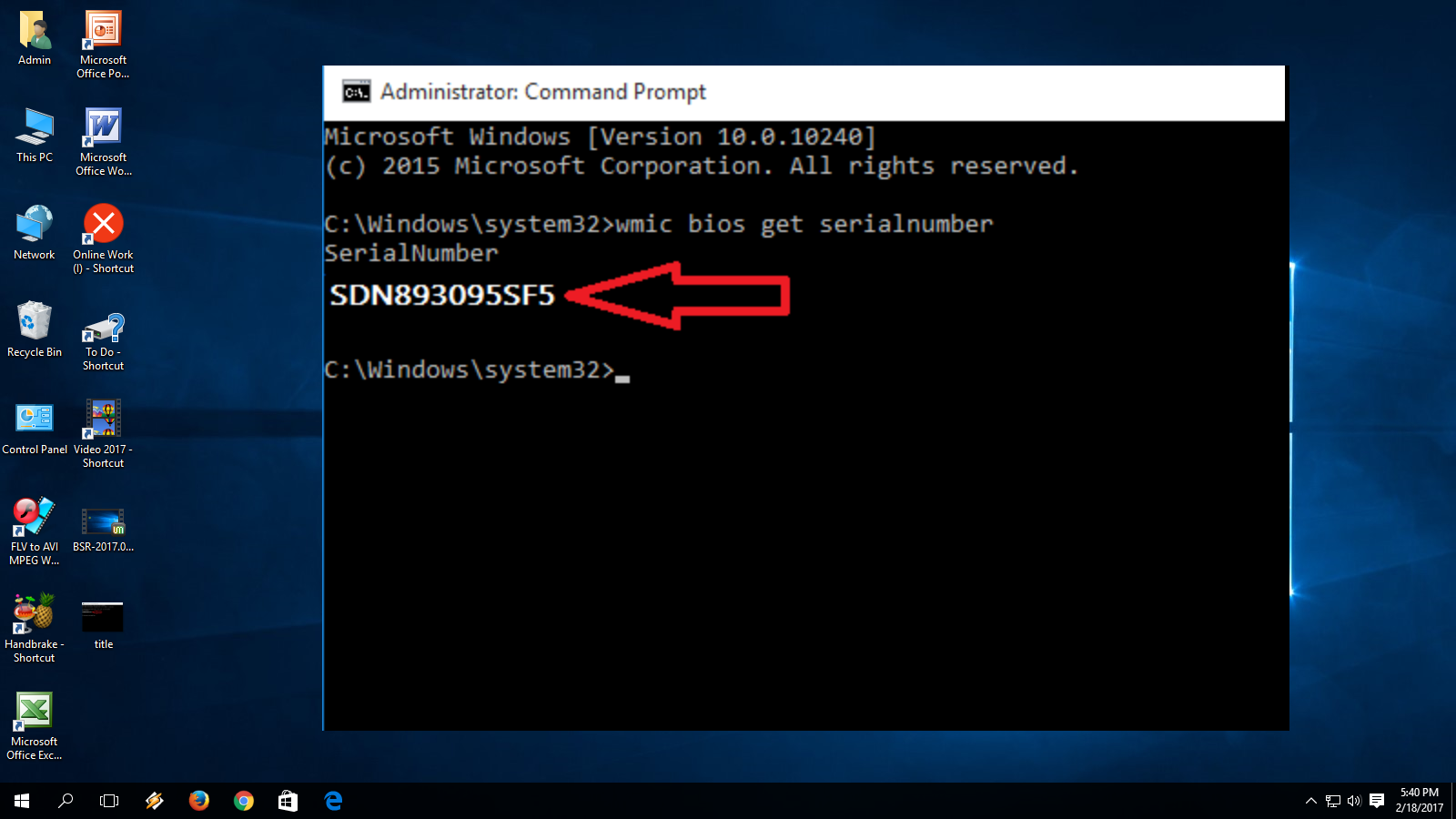
- Type the following command and press Enter:
wmic bios get serialnumber - The serial number will be displayed below the command. It might appear after a short delay.
If this command doesn't work, try this alternative command:
- Open the Command Prompt as an administrator (as described above).
- Type the following command and press Enter:
wmic csproduct get identifyingnumber - The serial number will be displayed below the command.
Method 4: Use PowerShell (Windows)
PowerShell is a more advanced command-line interface than Command Prompt, but it can also be used to retrieve the serial number.
- Open PowerShell as an administrator.
- Click the Start button.
- Type "powershell".
- Right-click on "Windows PowerShell" in the search results and select "Run as administrator".
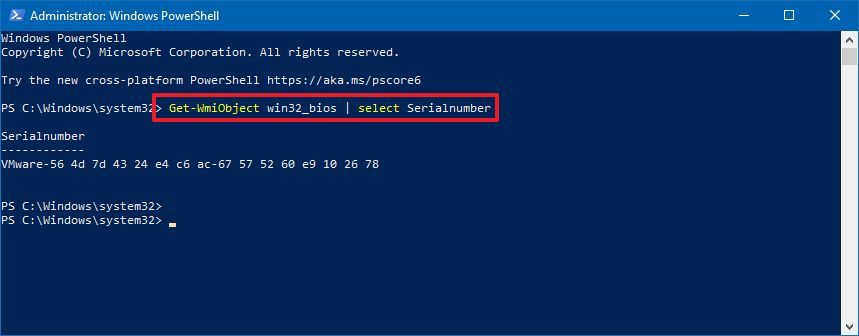
- Type the following command and press Enter:
Get-WmiObject win32_bios | select SerialNumber - The serial number will be displayed in the output.
If the above command doesn't work, you can try this alternative PowerShell command:
- Open PowerShell as an administrator (as described above).
- Type the following command and press Enter:
Get-WmiObject win32_computersystemproduct | select IdentifyingNumber - The serial number will be displayed in the output.
Method 5: Use the Terminal (macOS)
Mac users can find the serial number using the Terminal application.
- Open the Terminal application. You can find it in the Utilities folder within the Applications folder. (Applications > Utilities > Terminal).
- Type the following command and press Enter:
system_profiler SPHardwareDataType | awk '/Serial Number (system):/{print $NF}' - The serial number will be displayed in the Terminal window.
Method 6: Through Your Laptop Manufacturer's Software or Website
Some laptop manufacturers provide software or websites that can automatically detect your laptop's serial number. This often involves downloading and installing a small utility program.
- Dell: Dell provides a support website where you can enter your Service Tag (which is essentially the serial number for Dell laptops) to access specific drivers, manuals, and warranty information. They also offer a "Dell SupportAssist" application that can automatically detect your system information.
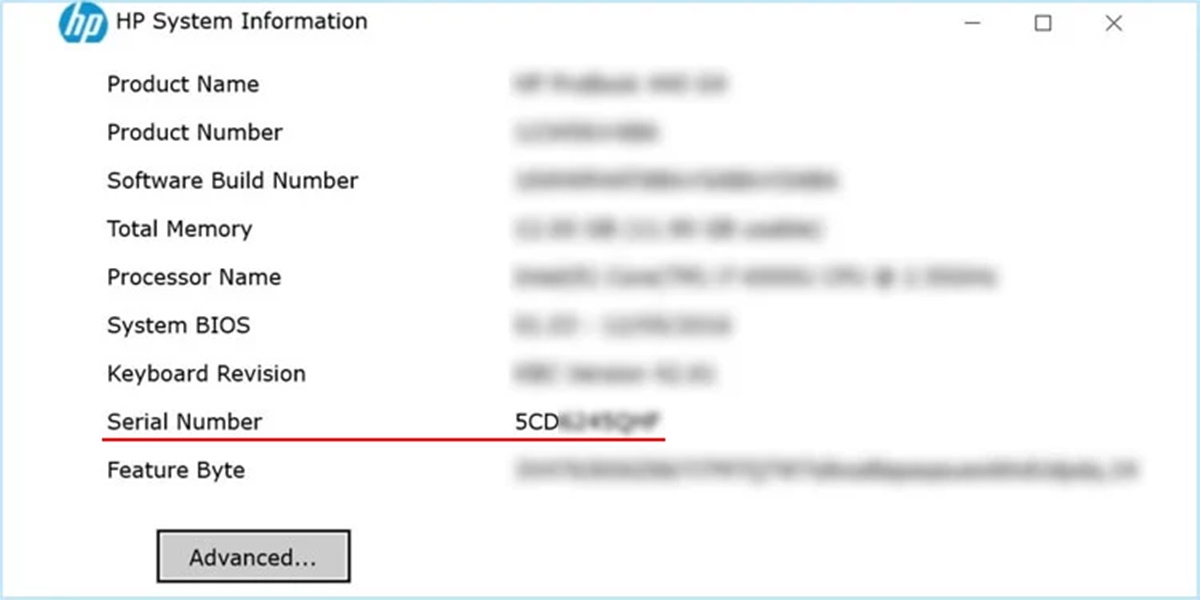
- HP: HP has a similar support website and offers the "HP Support Assistant" software for automated system detection.
- Lenovo: Lenovo also has a support website and their "Lenovo Vantage" software can identify your laptop and provide relevant information.
- Acer: For Acer laptops, the SNID can be found on the Acer website by providing details of your product.
- ASUS: ASUS offers a support website to assist in locating Serial Number.
To use these services, visit the manufacturer's official website and look for the "Support" or "Downloads" section. Follow the instructions to download and install the relevant software, or use the online tool if available. The software or website should automatically detect your laptop's serial number and other system information.
Troubleshooting: Serial Number Not Found
If you've tried all the methods above and still can't find your laptop's serial number, here are a few possible reasons and solutions:
- Sticker Removed or Damaged: The sticker containing the serial number might have been accidentally removed or damaged. If the sticker is partially damaged, try to decipher any legible characters.
- BIOS/UEFI Issue: There might be an issue with the BIOS/UEFI firmware. In rare cases, the serial number might not be properly programmed into the BIOS/UEFI. This is usually a manufacturer defect. Contact the manufacturer's support for assistance.
- Incorrect Command: Double-check that you've typed the commands correctly in the Command Prompt, PowerShell, or Terminal. Even a small typo can prevent the command from working.
- Virtual Machine: If you're running Windows or macOS inside a virtual machine, the reported serial number might be the serial number of the virtual machine software, not the host computer. Try checking the serial number of the host computer directly.
- Counterfeit Laptop: While rare, if you purchased the laptop from an untrusted source, it's possible that it's a counterfeit and doesn't have a valid serial number.
Important Reminders
- Record the Serial Number: Once you've found your laptop's serial number, write it down in a safe place or store it digitally. This will save you time and effort in the future.
- Keep the Original Packaging: If possible, keep the original box your laptop came in. It contains valuable information, including the serial number.
- Register Your Laptop: Consider registering your laptop with the manufacturer. This can simplify warranty claims and provide access to support resources.
By following these methods, you should be able to easily locate your laptop's serial number. Remember to be careful when accessing the BIOS/UEFI settings and always use the Command Prompt, PowerShell, or Terminal with administrator privileges. Good luck!