Hp Model Number Lookup

Ever tried to find the right driver for your HP printer, only to realize you have absolutely no idea what the model number is? Or maybe you need to order a replacement part for your HP laptop, but the sticker on the bottom has worn away? This is a common problem for HP product owners, and fortunately, there are several ways to identify your device model number. This article will walk you through those methods, step-by-step, so you can get the information you need without pulling your hair out.
Why Knowing Your HP Model Number Matters
Before we dive into the solutions, let's understand why knowing your HP model number is so important:
- Downloading the Correct Drivers: Installing the wrong drivers can cause malfunctions or even damage your device. Model numbers ensure you get the right ones.
- Ordering Replacement Parts: Knowing your model number is crucial for ordering compatible batteries, screens, keyboards, or other parts.
- Accessing Support Resources: HP's support website organizes information by model. The correct model number lets you find manuals, FAQs, and troubleshooting guides specific to your device.
- Checking Warranty Status: You'll typically need the model number to verify your device's warranty status.
- Selling or Trading In Your Device: Potential buyers will need the model number to research the device's specifications and value.
Troubleshooting HP Model Number Lookup: Step-by-Step Guide
Let's explore different methods for finding your HP model number, starting with the easiest and most common.
Method 1: Check the Product Label or Sticker
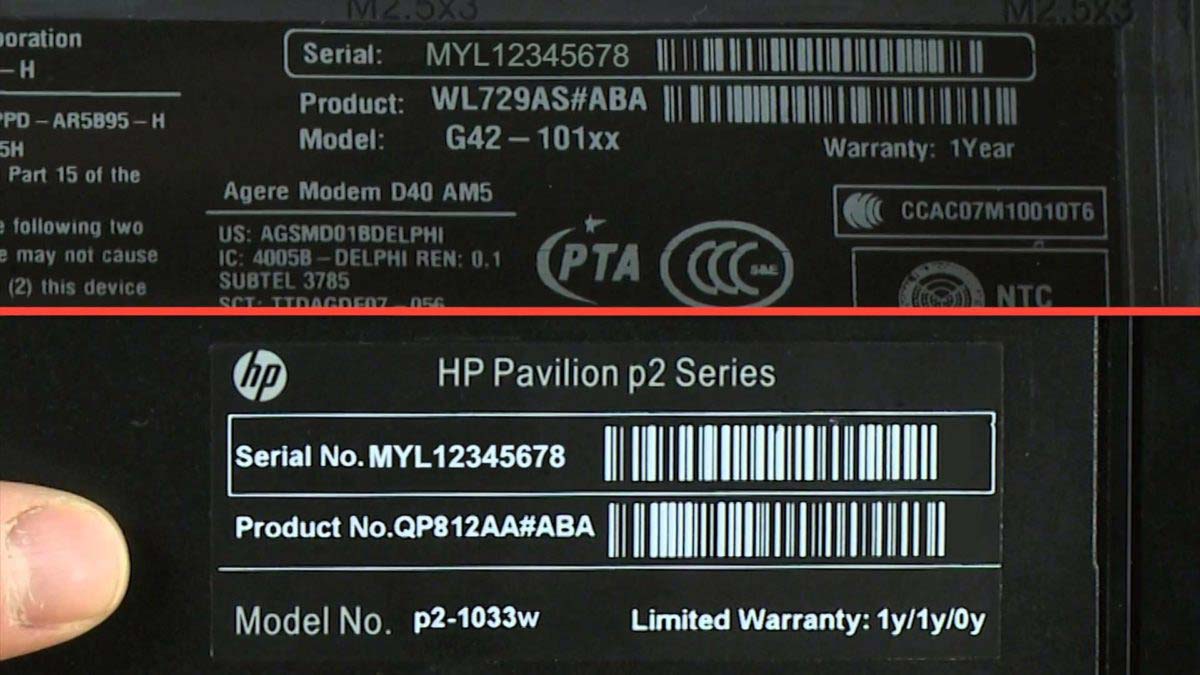
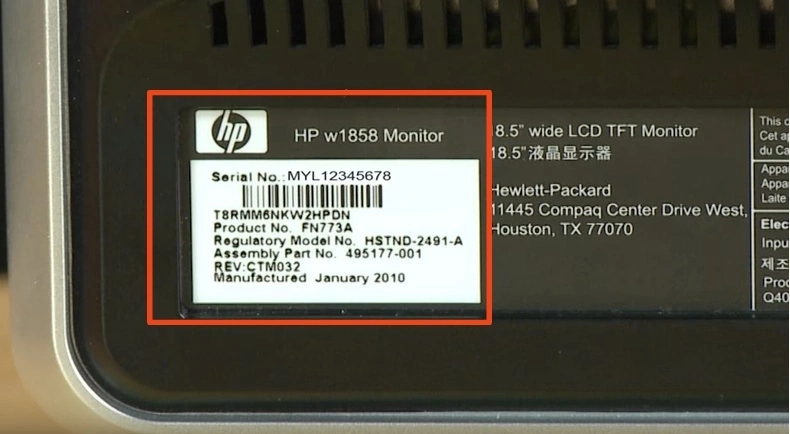
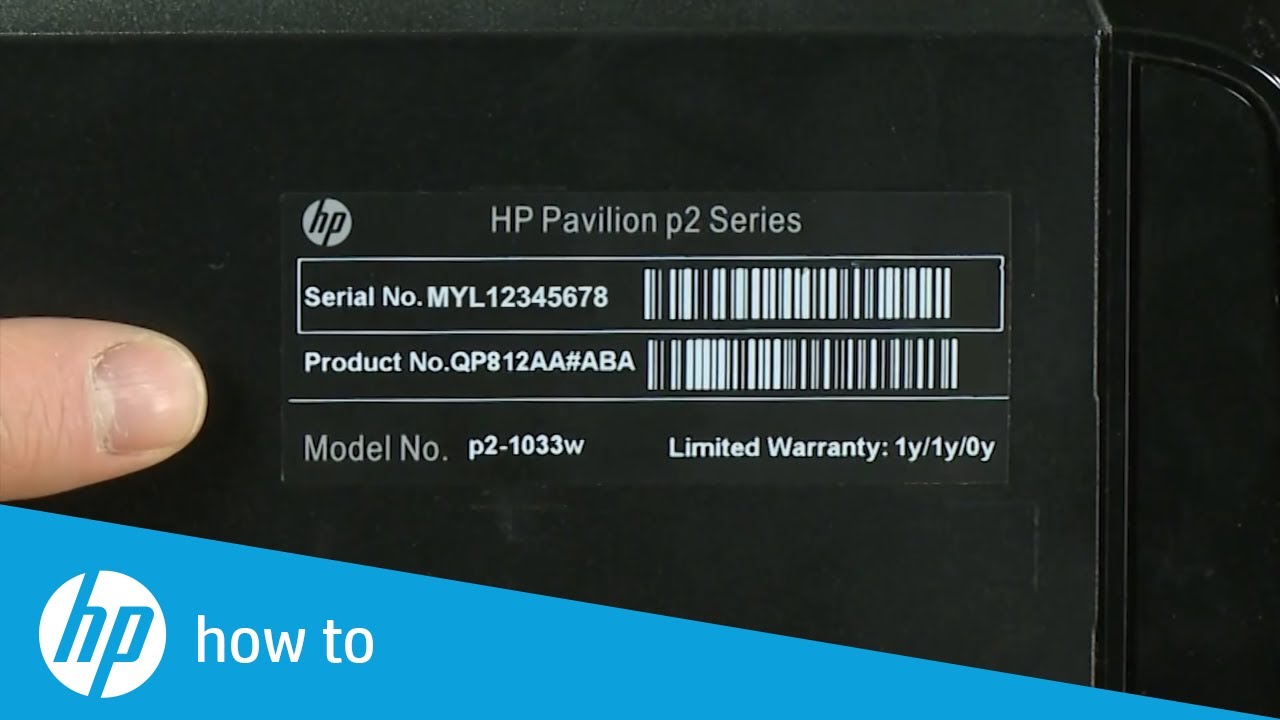
This is usually the first place to look. HP typically places a sticker containing product information on the device itself. Here's where to look:
For Laptops:
Diagnosis: Locate the product sticker.
Steps:
- Power off your laptop. This is for safety and convenience.
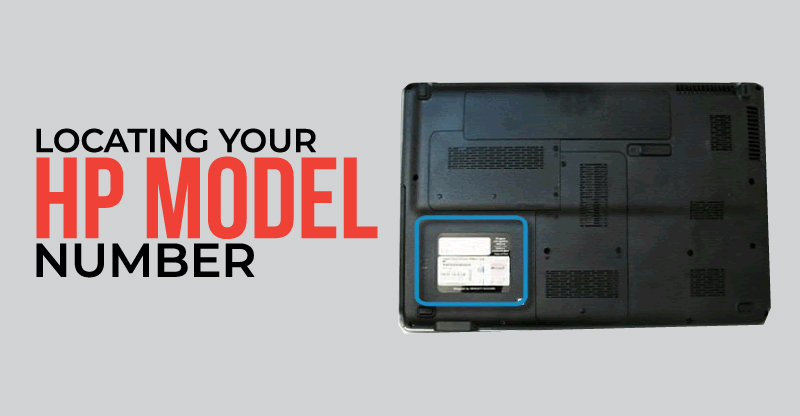
- Turn the laptop over. Look for a sticker on the bottom of the laptop. It might be near the battery compartment or on a separate panel.
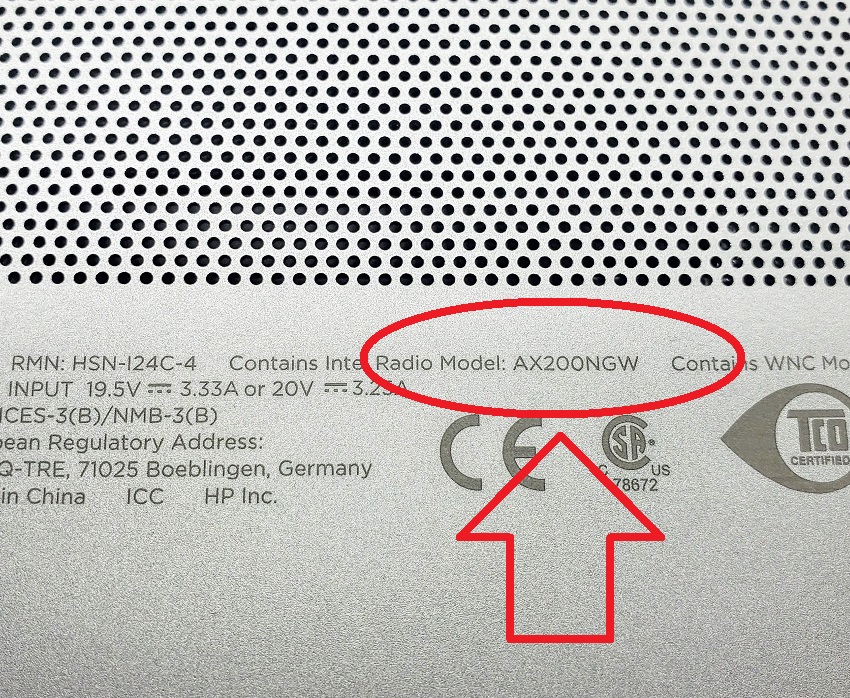
- Carefully examine the sticker. Look for terms like "Model Number," "Product Number," "Product Name," or similar phrases. The model number is usually a combination of letters and numbers (e.g., HP Pavilion 15-eg2000).
- Note the model number. Write it down or take a picture for future reference.
DIY Fixes:
If the sticker is partially torn or faded, try these:
- Use a flashlight: Shine a bright light at different angles to see if you can make out the faded text.
- Take a close-up photo: Use your smartphone's camera to take a close-up picture. Zoom in and adjust the contrast or brightness in your photo app to enhance the text.
- Magnifying glass: Use a magnifying glass to read any partially obscured characters.
When to Call a Professional: If the sticker is completely missing or illegible, proceed to the next method.
For Desktop Computers:
Diagnosis: Locate the product sticker.
Steps:
- Power off the desktop computer and unplug it from the power outlet.
- Check the side, top, or back panel of the computer case. Look for a sticker similar to the one on laptops.
- Examine the sticker for the model number, product number, or product name.
- Note the information.
DIY Fixes:
Same as for laptops – flashlight, close-up photo, magnifying glass.
When to Call a Professional: If the sticker is missing or illegible, move to the next method.
For Printers:
Diagnosis: Locate the product sticker.
Steps:
- Look on the front, back, or side of the printer. The sticker is often located near the paper tray or on the back panel.
- Check inside the printer by opening the access doors (e.g., for ink cartridges or paper jams). Sometimes the model number is located inside.
- Examine the sticker for the model number.
- Note the information.
DIY Fixes:
Same as for laptops and desktops – flashlight, close-up photo, magnifying glass.
When to Call a Professional: If the sticker is missing or illegible, continue to the next method.
Method 2: Check the BIOS or UEFI Settings (for Laptops and Desktops)
The BIOS (Basic Input/Output System) or UEFI (Unified Extensible Firmware Interface) is a firmware interface that initializes hardware components during the startup process. It often displays system information, including the model number.
Diagnosis: Access the BIOS/UEFI settings.
Steps:
- Restart your computer.
- As the computer restarts, watch for a message that tells you which key to press to enter the BIOS/UEFI setup. Common keys are Del, F2, F10, F12, or Esc. The key you need to press will be displayed briefly on the screen during startup.
- Press the appropriate key repeatedly until the BIOS/UEFI setup screen appears. You need to be quick; the window for pressing the key is brief.
- Navigate through the BIOS/UEFI menu using the arrow keys. Look for sections like "System Information," "Product Information," or "Main." The exact name of the section will vary depending on the BIOS/UEFI version.
- Locate the model number or product name in the system information.
- Note the information.
- Exit the BIOS/UEFI setup. Usually, you can press Esc to go back to the main menu and then select "Exit" or "Exit and Save Changes." If you don't want to save any changes, choose "Exit Without Saving."
DIY Fixes:
- Consult your motherboard manual: If you have a custom-built desktop, the BIOS/UEFI interface will be specific to your motherboard. Consult the motherboard manual for instructions on accessing and navigating the BIOS/UEFI setup.
When to Call a Professional: If you are uncomfortable navigating the BIOS/UEFI settings or if you cannot access the BIOS/UEFI, it's best to seek assistance from a qualified technician. Incorrectly modifying BIOS settings can cause serious system problems.
Method 3: Use Command Prompt or Terminal (for Windows and macOS Laptops/Desktops)
The command prompt (Windows) and terminal (macOS) provide command-line interfaces where you can execute commands to retrieve system information, including the model number.
For Windows:
Diagnosis: Access Command Prompt and use the `wmic` command.
Steps:
- Open Command Prompt. You can do this by searching for "cmd" in the Windows search bar and pressing Enter. Alternatively, press Windows key + R, type "cmd," and press Enter.
- Type the following command and press Enter:
wmic csproduct get name - The model number should be displayed in the Command Prompt window.
- Note the information.
DIY Fixes:
- Try other `wmic` commands: If the first command doesn't work, try these alternative commands:
wmic computersystem get modelwmic baseboard get product,Manufacturer,Version,SerialNumber
When to Call a Professional: If you are unfamiliar with the command prompt or if you are unable to retrieve the model number using these commands, consult a technician.
For macOS:
Diagnosis: Access Terminal and use the `system_profiler` command.
Steps:
- Open Terminal. You can find it in the Applications/Utilities folder, or search for "Terminal" using Spotlight (Command + Spacebar).
- Type the following command and press Enter:
system_profiler SPHardwareDataType | awk '/Model Identifier:/ {print $3}' - The model identifier will be displayed in the Terminal window. This isn't the exact model number, but it's a crucial piece of information that will help you find it. For example, "MacBookPro16,1".
- Use the model identifier to find the exact model name. Visit the EveryMac website (everymac.com) and search for the identifier to get the full product name and model number.
- Note the information.
DIY Fixes:
- Try other `system_profiler` commands: If the command above doesn't work, you can try exploring other `system_profiler` options. Type
system_profiler -listDataTypesto see a list of available data types, and then usesystem_profiler [DataType]to get information about that data type.
When to Call a Professional: If you are unfamiliar with the terminal or if you are unable to retrieve the model information, seek assistance from a qualified technician or Apple support.
Method 4: Check the HP Support Assistant (for Windows Laptops/Desktops)
HP Support Assistant is a pre-installed application on many HP computers. It provides system information, including the model number, and helps with updates and troubleshooting.
Diagnosis: Open HP Support Assistant.
Steps:
- Search for "HP Support Assistant" in the Windows search bar and press Enter. If it's not installed, you can download it from the HP website.
- Open the application.
- The model number should be displayed on the main screen or in the "My Devices" section.
- Note the information.
DIY Fixes:
- Update HP Support Assistant: Make sure you have the latest version of HP Support Assistant. Outdated versions may not display the correct information.
- Reinstall HP Support Assistant: If HP Support Assistant is corrupted, try reinstalling it.
When to Call a Professional: If HP Support Assistant is not functioning correctly or if you are unable to find the model number, contact HP support for assistance.
Method 5: Check Your HP Account (if Registered)
If you registered your HP product with your HP account, the model number may be listed in your account details.
Diagnosis: Log in to your HP account.
Steps:
- Go to the HP website (hp.com) and click on "Sign in" or "My Account."
- Log in to your HP account using your email address and password.
- Navigate to the "My Products" or "Registered Products" section.
- Look for your device in the list of registered products. The model number should be displayed next to the product name.
- Note the information.
DIY Fixes:
- If your product isn't listed, you might not have registered it. Try registering it now, but you'll still need to find the model number using another method.
When to Call a Professional: If you are unable to access your HP account or if the model number is not listed, contact HP support for assistance.
When to Call a Professional
While these methods can help you find your HP model number, there are situations where professional help is necessary:
- You are uncomfortable with any of the steps. If you feel unsure about navigating the BIOS/UEFI settings or using the command prompt, it's best to seek help from a technician.
- You have tried all the methods and still cannot find the model number. A technician may have access to specialized tools or databases that can help identify your device.
- Your device is malfunctioning or damaged. A technician can diagnose and repair the device and may be able to determine the model number during the repair process.
By following these troubleshooting steps, you should be able to identify your HP device's model number. Remember to be patient, methodical, and careful. If you are ever unsure about a step, it's always best to seek professional assistance.