Remote Programming Honeywell Home Pro Series
Is your Honeywell Home Pro Series thermostat stubbornly refusing to cooperate remotely? You're not alone! A common homeowner frustration is inconsistent heating or cooling, despite diligently setting schedules and temperatures using the Honeywell Home app. Imagine this: you're heading home early on a chilly day, you fire up the app to warm things up, but arrive to a frigid house. Or, perhaps you try to cool the house down on a sweltering day, only to find it stiflingly hot. This article will guide you through troubleshooting common remote programming issues with your Honeywell Home Pro Series thermostat.
Diagnosis: Why Isn't My Thermostat Responding Remotely?
Before calling in the professionals, let's systematically identify the culprit. Start with these initial checks:
Step 1: Basic Checks (No Tools Required)
First, let's cover the low-hanging fruit. These checks require absolutely no tools and are easy to perform.
- Check Your Internet Connection: This is the most frequent cause. Make sure your Wi-Fi is working properly. Can you browse the internet on your phone or computer when connected to your home Wi-Fi? If not, troubleshoot your router and modem. Restarting them often solves the problem.
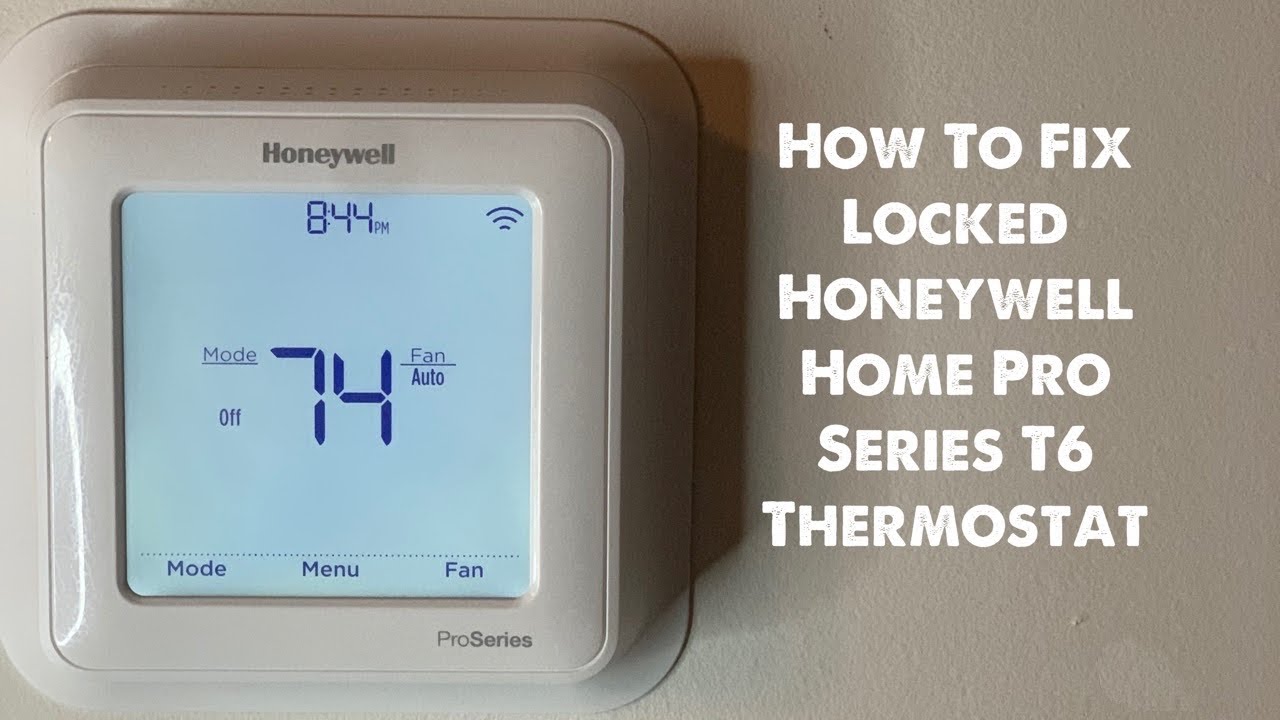
- Verify Thermostat Wi-Fi Connection: Look at the thermostat display itself. Does it show a Wi-Fi icon? If the icon is missing or flashing, the thermostat has lost its Wi-Fi connection. Consult your thermostat's user manual (or search online for your specific model) for instructions on reconnecting it to your Wi-Fi network. Usually, this involves pressing a button combination or navigating through the thermostat's menu.
- App Login and Account Status: Are you logged into the Honeywell Home app with the correct username and password? Double-check your credentials. Also, ensure your account is in good standing and hasn't been suspended for any reason. Try logging out and back in.
- App Version: Is your Honeywell Home app up to date? Outdated apps can have compatibility issues. Check the Apple App Store or Google Play Store for updates.
- Thermostat Power: Is the thermostat powered on? A completely dead thermostat obviously won't respond to remote commands. If it's battery-powered, check the batteries and replace them if necessary. If it's hardwired, check the circuit breaker (we'll cover this in more detail later).
- Thermostat Mode: Is the thermostat set to "Off," "Heat," "Cool," or "Auto?" If it's in "Off" mode, it won't respond to temperature adjustments. Make sure it's in the appropriate mode for heating or cooling. Also, check if it’s in “Hold” mode, overriding the programmed schedule.
- Physical Obstructions: Is anything blocking the thermostat's signal? While less common, large metal objects or thick walls can sometimes interfere with the Wi-Fi signal.
Step 2: Advanced Checks (Simple Tools May Be Required)
These checks might require a simple screwdriver or access to your circuit breaker box. *Always exercise caution when working with electricity!* If you are uncomfortable with any of these steps, contact a qualified HVAC technician.
- Check the Thermostat Wiring (Power Related): Only if your thermostat is hardwired! Turn off the circuit breaker that controls the thermostat *before* touching any wires. Carefully remove the thermostat from the wall plate. Examine the wires to ensure they are securely connected to the terminals. Look for loose connections or corroded wires. If you find any, gently tighten the screws or clean the corrosion (use a small wire brush and *make sure the breaker is off*). Consult your thermostat's wiring diagram if you're unsure about the correct wire placement. Reattach the thermostat to the wall plate and turn the circuit breaker back on.
- Router Firmware Update: While your internet connection may be working, your router's firmware might be outdated. Check your router manufacturer's website for instructions on how to update the firmware. An outdated firmware can sometimes cause connectivity issues with smart devices like your thermostat.
- DHCP Reservation: Some routers have trouble consistently assigning the same IP address to the thermostat. Assigning a static IP address or setting up a DHCP reservation for the thermostat in your router's settings can sometimes improve reliability. This process varies depending on your router model; consult your router's manual for instructions.
- Signal Strength: Check the Wi-Fi signal strength at the thermostat's location. You can use a Wi-Fi analyzer app on your smartphone to measure the signal strength. If the signal is weak, consider moving your router closer to the thermostat or adding a Wi-Fi extender.
Step 3: App Troubleshooting
Let's dig deeper into the app itself.
- Remove and Re-add the Thermostat to the App: Sometimes, the connection between the app and the thermostat becomes corrupted. Try removing the thermostat from your Honeywell Home app and then re-adding it. This is similar to restarting the connection from scratch. Follow the app's instructions for removing and adding devices.
- Check Geofencing Settings: If you're using geofencing (the thermostat automatically adjusts based on your location), ensure that the geofencing settings are configured correctly. Verify that your location is accurate and that the geofence radius is appropriate for your needs. Incorrect geofencing settings can cause unexpected temperature changes.
- Review Schedules and Overrides: Carefully review your thermostat's schedule in the app. Make sure that the programmed temperatures and times are correct. Also, check for any temporary overrides that might be preventing the thermostat from following its schedule.
- Check for Multiple Users/Accounts: If multiple users have access to the thermostat through the Honeywell Home app, ensure that no one is inadvertently overriding your settings. Coordinate with other users to avoid conflicts.
- Contact Honeywell Support: If you've tried all of the above steps and your thermostat is still not responding remotely, it's time to contact Honeywell Home support. They may be able to diagnose the problem remotely or provide additional troubleshooting steps. Have your thermostat model number and serial number ready when you contact them.
DIY Actions You Can Take (Safely!)
Based on your diagnosis, here are some DIY actions you can safely undertake:
- Restart Your Router and Modem: As mentioned earlier, this is often the simplest and most effective solution. Unplug both devices, wait 30 seconds, and plug them back in.
- Reconnect the Thermostat to Wi-Fi: Follow the instructions in your thermostat's manual to reconnect it to your Wi-Fi network.
- Replace Thermostat Batteries: If your thermostat is battery-powered, replace the batteries with fresh ones.
- Update the Honeywell Home App: Check the Apple App Store or Google Play Store for updates.
- Tighten Loose Wire Connections (with breaker OFF): If you found loose wire connections, carefully tighten them. *Remember to turn off the circuit breaker first!*
- Move Your Router or Add a Wi-Fi Extender: If the Wi-Fi signal is weak, try moving your router closer to the thermostat or adding a Wi-Fi extender to improve the signal strength.
- Remove and Re-add the Thermostat to the App: As described earlier, this can sometimes resolve connectivity issues.
When to Call a Professional HVAC Technician
While we've covered many DIY troubleshooting steps, some issues are best left to the professionals. *Never attempt repairs that you are not comfortable with.* Call a qualified HVAC technician in the following situations:
- Electrical Issues: If you suspect a more serious electrical problem, such as a faulty circuit breaker or damaged wiring. *Working with electricity can be dangerous if you're not properly trained.*
- HVAC System Malfunctions: If you suspect that the problem lies with your heating or cooling system itself, rather than the thermostat. For example, if your furnace isn't firing up or your air conditioner isn't blowing cold air, the issue may be with the equipment, not the thermostat's remote access.
- Complex Wiring Issues: If you're unsure about the thermostat wiring or if you find damaged wires, it's best to call a professional. *Improper wiring can damage your thermostat or your HVAC system.*
- Repeated Failures: If you've tried all of the DIY troubleshooting steps and the thermostat continues to lose its remote connection or experience other problems, there may be an underlying issue that requires professional diagnosis and repair.
- Refrigerant Leaks: If you suspect a refrigerant leak in your AC unit. This requires specialized equipment and expertise.
- Compressor Issues: Problems with the compressor in your AC unit are complex and require a trained technician.
Final Thoughts
Troubleshooting remote programming issues with your Honeywell Home Pro Series thermostat can be frustrating, but by following these steps, you can often identify and resolve the problem yourself. Remember to prioritize safety and call a professional if you're unsure about anything. With a little patience and persistence, you can get your thermostat back online and enjoy the convenience of remote control once again. Always consult your thermostat’s manual for specific instructions and safety information. Good luck!